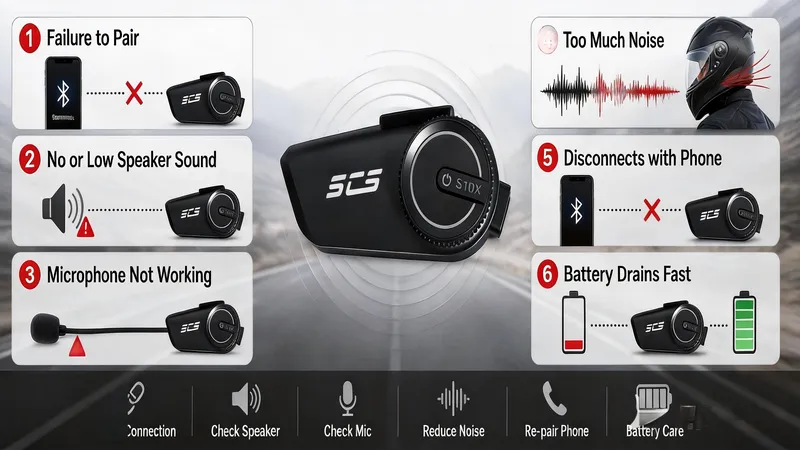
Motorcycle Intercom Troubleshooting Guide: Fix Connection, Audio, and Power Issues
- 80% of intercom issues are fixable without contacting support
- No audio: check speaker connection, separate intercom volume from music volume
- Mic not working: position boom mic 1–2 inches from mouth, check intercom mode
- Frequent disconnects: stay within range, avoid 2.4 GHz interference (WiFi, other BT)
- Battery dies fast: avoid 0–100% cycles; charge between 30–80% for daily rides
Your intercom won't pair. The other rider can't hear you. Music cuts out at highway speed. Battery dies halfway through a ride. These are the most common frustrations riders face — and most of them have simple fixes you can do yourself.
This troubleshooting guide covers the six most frequent intercom problems, with step-by-step solutions for each. Before you assume your intercom is broken, try these fixes — they solve about 80% of reported issues.
Problem 1: Intercom Won't Pair with Another Rider
This is the #1 complaint. Two intercoms that should connect won't, or they pair briefly and immediately disconnect.
Step-by-step fixes:
- Clear previous pairing history: Both intercoms remember their last paired device. If your S9XM was previously paired to a different unit, it's still trying to reconnect to that device. Go to settings and clear the pairing history on both units, then try pairing fresh.
- Put both units in intercom pairing mode: Many riders accidentally try pairing while one unit is in phone mode (connected to their phone via Bluetooth). Intercom pairing is a separate mode — enter it on both units simultaneously.
- Check cross-brand compatibility: Not all intercoms can pair across brands. SCSETC intercoms can pair with some Sena and Cardo models using universal pairing mode, but it requires specific steps. See our cross-brand pairing guide for details.
- Verify Bluetooth version compatibility: A Bluetooth 5.3 intercom should pair with a Bluetooth 5.1 unit, but older Bluetooth 3.0 or 4.0 intercoms may have connection issues with newer models.
- Reset both units: If pairing still fails, perform a factory reset on both intercoms. This clears all stored connections and restores factory settings. Pair again from scratch.
- Check distance: Intercom pairing requires the units to be within 1–3 meters of each other. Don't try pairing across a parking lot.
If it still won't pair:
One of the intercoms may have a defective Bluetooth module. This is rare but happens. Contact SCSETC after-sales support for warranty service.
Problem 2: No Sound from Speakers
You can see the intercom is connected, but you hear nothing — or audio is so faint you can barely tell it's playing.
Step-by-step fixes:
- Check the speaker connector: The speakers plug into the intercom unit via a small jack. This connector can loosen from helmet vibration. Unplug it, inspect for bent pins or debris, and re-seat it firmly until it clicks.
- Check intercom volume (not phone volume): Intercoms have two separate volume controls — one for phone/music and one for intercom communication. You may have turned down the intercom volume while phone volume is fine. Increase the intercom volume using the dedicated volume button.
- Check speaker placement: On full-face helmets, speakers should sit flush against your ear pockets. On half or open-face helmets, clip-on speakers must be positioned close to your ears. If speakers are 2+ inches from your ears, audio will be too faint at speed.
- Test with phone music: Play music from your phone through the intercom. If you hear music clearly but can't hear intercom conversation, the issue is with intercom settings or the other rider's mic. If you can't hear anything at all, the issue is speakers or the connector.
- Try a different speaker set: If you have a spare speaker set (or can borrow one), swap it in. If audio works with the replacement, your original speakers are damaged. Speaker diaphragms can puncture from pressure or impact.
Problem 3: Microphone Not Working — Other Rider Can't Hear You
You hear the other rider fine, but they hear nothing from you — or they hear wind noise instead of your voice.
Step-by-step fixes:
- Check microphone position: The boom mic should be 1–2 inches from your mouth, angled toward your lips. If the mic drifted away from your mouth (common on half helmets), the other rider hears wind, not your voice.
- Check mic connector: Like the speaker connector, the mic connector can loosen. Unplug and re-seat it firmly.
- Verify mic type matches helmet: Full-face helmets use a wired mic inside the chin bar. Half and open-face helmets use a boom mic. If you're using the wrong mic type for your helmet, audio pickup will be poor.
- Check for microphone blockage: Mic ports can get clogged with dust, earwax (on in-ear mics), or road grime. Clean the mic grille with a soft brush or compressed air.
- Test with a phone call: Call someone using the intercom's phone function. If they can hear you on the phone call but not on intercom, the intercom communication channel has an issue. If they can't hear you on the phone either, the mic itself is defective.
- Adjust noise cancellation level: If noise cancellation is set too aggressively, it may filter out your voice along with the noise. On SCSETC intercoms, CVC and DSP are calibrated for natural voice — but if you speak very softly, the algorithm may suppress your voice too. Speak clearly and project.
Problem 4: Static Noise or Audio Distortion
You hear crackling, buzzing, or distorted audio through the speakers — especially at higher speeds.
Step-by-step fixes:
- Check for loose connections: Static is most often caused by a partially disconnected speaker or mic jack. Vibration can wiggle connectors loose mid-ride. Push each connector in firmly.
- Move the speaker cable away from metal: Speaker cables running close to the helmet shell or chin bar metal can pick up interference. Route the cable through the helmet lining, away from metal surfaces.
- Reduce phone Bluetooth interference: If your phone and intercom are both connected via Bluetooth, and you have a smartwatch or other BT device active, interference can cause static. Disconnect unused Bluetooth devices before riding.
- Check for water damage: If you rode in heavy rain and audio is distorted afterward, water may have entered the speaker or mic. Dry the intercom completely (24–48 hours air drying) before using again. Don't use heat.
- Test at different speeds: If static only appears above 60 mph, it's wind-related. The noise cancellation may be maxed out and unable to filter all wind noise. Consider upgrading to a DSP-based intercom like the S9XM or T2 Plus for better high-speed performance.
- Check speaker condition: A punctured speaker diaphragm produces distorted, tinny audio. Inspect speakers for visible damage. Replace if the diaphragm is torn.
Problem 5: Bluetooth Disconnects from Phone
Your intercom pairs with your phone at home but drops the connection during riding — especially at highway speed or after a few minutes.
Step-by-step fixes:
- Keep the phone accessible: Bluetooth 5.x has a theoretical range of 240m, but real-world range drops dramatically when the phone is in a pocket, saddlebag, or under layers of clothing. Keep your phone in a jacket chest pocket or tank bag for the strongest signal.
- Disable other Bluetooth devices: Smartwatches, wireless earbuds, and other BT devices compete for your phone's Bluetooth bandwidth. If your phone is connected to 3+ Bluetooth devices simultaneously, the intercom connection may drop. Disconnect non-essential BT devices before riding.
- Check phone Bluetooth settings: Some phones have a Bluetooth "power saving" mode that reduces scanning frequency after a few minutes — causing disconnects. Check your phone's Bluetooth settings and disable any power optimization for the intercom connection.
- Restart the phone Bluetooth stack: Toggle Bluetooth off and back on. Re-pair the intercom. This clears temporary connection errors.
- Update intercom firmware: Bluetooth stability is one of the most common firmware improvement areas. Check SCSETC support for firmware updates for your model.
Problem 6: Battery Drains Too Fast
Your intercom is rated for 12–20 hours but dies after 3–4 hours of riding.
Step-by-step fixes:
- Disable Bluetooth discovery mode when not pairing: Discovery mode (when the intercom is searching for new devices) draws significantly more power than a connected, idle state. Turn off discovery mode after pairing is complete.
- Close unused apps on your phone: If your intercom is connected to your phone, apps that stream data (GPS, music apps, social media) drain battery on both devices. GPS navigation through the intercom uses less power than streaming music continuously.
- Check charging habits: Repeated full drain (0%) to full charge (100%) cycles degrade lithium-ion batteries faster than partial charges. Try charging between 30–80% for daily rides, and only charge to 100% before long rides.
- Use the correct charging cable: Cheap uncertified Type-C cables can deliver unstable voltage that damages the battery's charge controller. Use the cable included with your intercom or a certified replacement.
- Avoid heat exposure: Leaving your helmet in direct sunlight (or a hot car) degrades the battery permanently. A battery that's been heat-damaged will show reduced capacity that can't be recovered. See our intercom care guide for heat protection tips.
- Check battery age: Lithium-ion batteries lose capacity over 2–3 years of regular use. If your intercom is more than 2 years old and battery life has progressively declined, the battery may simply need replacement. Contact after-sales support for battery replacement options.
Quick Reference: Problem → First Fix
| Problem | First Thing to Try |
|---|---|
| Won't pair with another intercom | Clear pairing history on both units, re-pair |
| No sound from speakers | Check speaker connector (unplug & re-seat) |
| Other rider can't hear me | Check mic position (1–2" from mouth) |
| Static noise in audio | Check all cable connections for looseness |
| Bluetooth drops from phone | Move phone to chest pocket or tank bag |
| Battery drains fast | Turn off discovery mode after pairing |
When to Contact Support
If you've tried all the fixes above and your intercom still doesn't work, it's likely a hardware issue:
- Defective Bluetooth module: Won't pair even after factory reset on both units
- Damaged speaker diaphragm: Distorted audio even with a new connector
- Dead microphone: No voice pickup on phone calls AND intercom
- Battery failure: Won't hold charge even after proper charging cycles
- Water corrosion: Audio issues persist after complete drying
SCSETC provides warranty coverage and after-sales support for these hardware issues. Visit our after-sales page to submit a support request. Include your model name, purchase date, and a description of the problem and fixes you've already tried.
Preventive Maintenance: Avoid Problems Before They Start
Most intercom problems are preventable with simple habits:
- Check connections before every ride: Give each cable connector a quick push to confirm it's seated. Takes 10 seconds, prevents 80% of audio issues.
- Charge correctly: Partial charges (30–80%) for daily use. Full charge only before long rides. Never charge a wet intercom or a hot one.
- Dry after rain rides: Remove the intercom, wipe dry, air-dry 24 hours before charging or storing.
- Inspect monthly: Check for cable wear, connector looseness, adhesive pad condition, and battery level during storage.
- Store properly: Remove from helmet during off-season. Charge to 60–70%. Store cool and dry. Top up every 2–3 months.
- Use the right mount: Adhesive pads for half helmets, clamps for full-face. Don't force a mount that doesn't fit your helmet type.
For detailed maintenance guidance, see our full intercom care guide.
FAQ
My intercom worked fine yesterday but won't pair today. What changed?
The most common cause: one or both units are still trying to connect to yesterday's paired device. Clear pairing history on both units and start fresh. Also check that neither unit is stuck in phone Bluetooth mode instead of intercom pairing mode.
I can hear music but not intercom conversation. Why?
Intercoms have separate volume levels for phone/music and for intercom communication. Increase the intercom volume (not the music volume) using the intercom's dedicated controls. Also verify that both units are actually in intercom mode — not just phone-connected.
My intercom disconnects every time I go above 60 mph. Is this normal?
No. Bluetooth disconnection at speed is not normal — it's usually caused by the phone being too far from the intercom (in a saddlebag or back pocket) or competing Bluetooth connections. Move your phone closer and disconnect other BT devices. If the intercom-to-intercom connection drops at speed, it's a signal strength issue — check that both units have charged batteries and are within range.
How do I factory reset my SCSETC intercom?
For most SCSETC models: power on the unit, then press and hold the multi-function button for 10–12 seconds until you hear a long beep or see the LED flash rapidly. This clears all paired devices and restores factory settings. Check your model's user manual for specific reset instructions, or visit after-sales support.
The Bottom Line
Most intercom problems are connection issues, not hardware failures. Before assuming your intercom is broken:
- Check physical connections (cables, connectors, mounting)
- Verify settings (pairing mode, volume levels, discovery mode)
- Clear previous pairing history and re-pair
- Factory reset if persistent issues
- Contact SCSETC support if hardware is confirmed defective
The four most impactful fixes: re-seat connectors, clear pairing history, adjust mic position, and keep your phone close. Try these first — they solve the majority of reported issues.